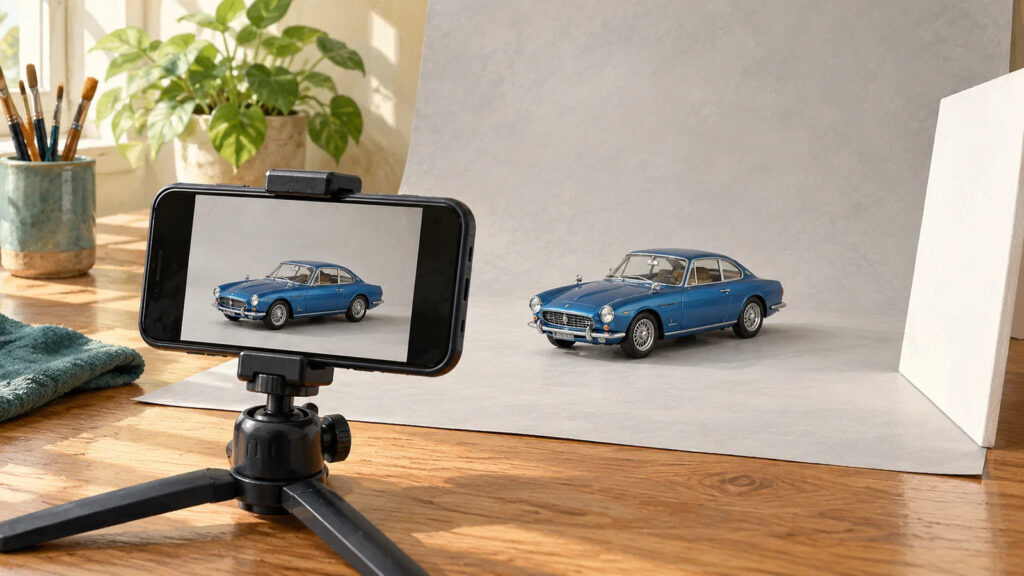
Cover: AI-generated editorial illustration.
A smartphone can make a clear record of a painted miniature, a finished model, or a diecast collection when the setup gives it three things: steady support, controllable light, and enough distance to focus. Start with the rear camera in ordinary Photo mode, a plain background, and one soft light source. Then make the model fill a useful part of the frame without pushing the phone so close that detail turns blurry.
The aim is to show what you built. A good photograph lets someone inspect the finish, understand the shape, and see details you chose to include. You can build a repeatable tabletop routine with equipment already at home.
In this guide
- Decide what the photograph needs to show
- Build a small, stable setup
- Find the camera's comfortable focusing distance
- Set focus and brightness deliberately
- Choose angles that explain the model
- A repeatable ten-minute photo session
- Fix the cause of an unsatisfactory photograph
- Edit for clarity and keep the original
- Frequently asked questions
- Sources and further reading
Decide what the photograph needs to show
One attractive angle rarely answers every question. Before arranging the lights, decide whether you are documenting a build, showing a finished piece, or recording an item’s condition. That decision changes which views deserve your time.
| Purpose | Useful photographs | What to protect |
|---|---|---|
| Finished miniature | Front three-quarter view, back, face or focal detail, base | Paint color, silhouette, and small projecting parts |
| Scale model | Three-quarter view, both sides, top, interior where visible | Proportions, surface finish, and alignment |
| Collection record | Whole item, markings, packaging, accessories, existing damage | Legible identification and honest condition |
| Build journal | Part before assembly, connection point, paint stage, finished result | The detail you will need to reproduce later |
Make the plain record photographs first. A dramatic low angle or scenic backdrop can follow once the essential views are safely captured.
Build a small, stable setup
Use a clear tabletop, a sheet of matte white or light gray card, and a phone support that holds its position. A phone clamp on a small tripod is convenient; an existing stable stand can work if it leaves the camera unobstructed. Keep the stand and model away from the table edge. A timer lets you release the phone before the exposure begins.

Clean the phone’s lens with an appropriate clean lens cloth. Check the model for loose dust, but avoid brushing delicate rigging, antennae, decals, or fresh finishes simply to improve a photo. Move the model by its secure base when possible.
Put the light at one side and slightly above the model. A window with indirect daylight is a useful starting point. Place white card on the opposite side to lift a dark area. Turn off nearby lamps if they give one side a noticeably different color. Take a test photograph before committing to a full set.
Find the camera’s comfortable focusing distance
Begin with the main rear camera, commonly labeled 1×. Move the phone toward the model gradually and tap a clear detail to focus. When repeated taps no longer make that detail sharp, back away. Leave space around the model and crop modestly afterward. A larger blurry subject contains less useful information than a slightly smaller sharp one.
Macro capability varies by phone. Apple’s macro guide explains that supported iPhones switch to the Ultra Wide camera for close work, with controls for automatic switching. Google’s Pixel Camera guide likewise limits Macro Focus and manual controls to particular models. Check your own device rather than assuming a flower icon or a Pro mode is available.
Compare a close macro photograph with a photograph taken farther away. Keep the one that shows the required detail with better proportions and cleaner edges. Extreme closeness is useful for a tiny badge or painted eye; it is not automatically the best choice for the entire model.
Set focus and brightness deliberately
For an overall view, focus on an important detail within the model rather than on the empty background. Inspect both the nearest and farthest features. If the nose of a car is sharp but its rear is soft, try a less oblique angle or move farther back before buying accessories.
On iPhone, tapping selects the focus area, the exposure control changes brightness, and holding the focus area can engage AE/AF Lock. These controls are described in Apple’s camera-tools instructions. Other phones use different controls. After any change in distance, check focus again.
Watch white paint, chrome, glossy clear coats, and pale decals. If those areas become blank patches, reduce brightness and take another frame. Do not brighten an entire photograph merely to make a white background look pure white. The model’s detail matters more than the background’s exact shade.
Choose angles that explain the model
Lower the camera toward the model’s own viewing height for a natural presentation. A car photographed from tabletop height emphasizes its stance; a higher view reveals its hood and roof. For a figure, start near its chest or face height rather than looking sharply down from above.
Turn the model slightly between frames while leaving the camera and lighting in place. With a long train car or an aircraft wing, include a nearly straight side or top view to show alignment. Keep the whole silhouette inside the frame, including mirrors, weapons, masts, and bases.
Use ordinary Photo mode for the record set. An artificial background-blur mode may misread fine gaps or thin parts. If you try one for an artistic image, enlarge the result and check that every antenna, wheel opening, and blade still has its correct outline.
A repeatable ten-minute photo session
- Choose the model, backdrop, and intended views before clearing the table.
- Position the phone and take one sharpness test at the nearest detail.
- Adjust the lamp or reflector until the important surface is readable.
- Check the brightest paint and metal for lost detail.
- Capture the complete model from the front and both sides.
- Photograph the back, underside, markings, and accessories where relevant.
- Make separate close-ups of details that cannot be judged in the overall image.
- Review the set at enlarged size before putting anything away.
Ten minutes is an organizing target, not a deadline for a fragile or complex model. Spend longer on safe handling and on any photograph that reveals a problem you want to document.
Fix the cause of an unsatisfactory photograph
| Problem | First adjustment |
|---|---|
| Everything looks soft | Clean the lens, stabilize the phone, add light, and check focusing distance. |
| Only the nearest part is sharp | Move back or choose a view with less distance between front and rear details. |
| Chrome has a distracting bright stripe | Move or enlarge the reflected light source; inspect its reflection on screen. |
| One side looks orange and the other blue | Remove competing light sources and repeat the reference shot. |
| Fine details disappear around the edges | Compare ordinary Photo mode with any portrait, smoothing, or enhancement setting. |
| The base looks crooked | Level the phone and check the base’s horizontal edge before cropping. |
Edit for clarity and keep the original
Start with a small rotation or crop, then adjust brightness and color conservatively. Compare the photograph with the model under the same light. Keep weathering, seams, paint texture, and condition marks visible. Removing dust on the background is different from erasing damage on an item being documented or sold.
Save the original full-resolution file and make a separate sharing copy. Use filenames that identify the item and view, such as blue-coupe-164-left-side.jpg, rather than relying only on the phone’s sequence number. Keep the same naming pattern for later photographs so your collection record stays searchable.
If you are assembling a compact hobby setup, the LootBandit hobby tools and supplies guide can help you separate useful equipment from purchases that do not solve your current problem.
Frequently asked questions
Do I need a macro lens attachment for my phone?
Usually, start without one. First test the built-in camera with more light, steady support, and a little more distance. Consider an attachment only when a specific detail remains too small, and verify that it fits your phone and case.
Should I photograph miniatures against white or black?
White or light gray makes a practical first backdrop because it is easy to inspect. Dark backgrounds can look effective, but check that black parts and dark bases retain visible edges. Choose the background that explains the subject best.
Why does my phone switch cameras when I move closer?
Some phones automatically change cameras for close focusing. The supported lenses and controls depend on the device. Check the macro instructions for your model, then compare results with automatic switching enabled and disabled where that option exists.
Can I photograph through a display case?
You can, but glass or clear plastic adds reflections and may hide detail. Photograph outside the case when the object can be handled safely. If it must stay inside, change the camera and light angles and check for reflections before shooting the full set.